Alerts

-
3 minutes, 31 seconds
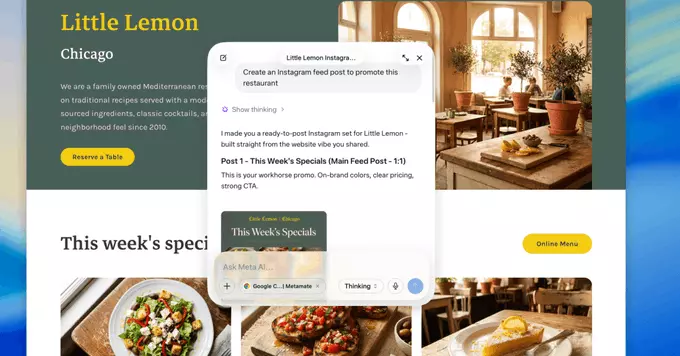
One of the most powerful capabilities in the Meta AI app is the ability to share your screen window directly with the AI. This feature lets the AI see and interact with the content on your screen in real time, making it feel like a collaborative partner rather than a simple chatbot. Instead of describing a problem or pasting text, you can simply show the AI what you are working on—whether it’s a spreadsheet, a design file, or a webpage.
To use this, you grant the app permission to view your active window. Once shared, Meta AI can analyze the visual information, answer questions about what it sees, and even suggest next steps or edits. This is particularly useful for troubleshooting, data review, or creative brainstorming, as the AI provides context-aware assistance without you needing to switch between apps or copy-paste content.
Remember, you remain in control: you can stop sharing your window at any time, and the AI only accesses the specific window you choose to share. This feature turns your screen into a shared workspace, streamlining how you get help and complete tasks.
To enable Meta AI to access your emails, documents, and calendar, you must first connect your Google Workspace account. Begin by opening the Meta AI app and navigating to the settings menu, typically found under your profile icon. From there, select the “Integrations” or “Connected Apps” option, then choose Google Workspace from the list of available services.
You will be prompted to sign in with your Google account credentials. After authenticating, Meta AI will request specific permissions to read your emails, view your documents, and access your calendar events. Review these permissions carefully, as they define the scope of data the AI can process. Once you grant access, the connection is established immediately. You can verify the successful link by returning to the integrations page, where your Google Workspace account should now appear as “Connected.”
If you encounter any issues, ensure you are using a supported browser and that you have granted all requested permissions. Disconnecting the account at any time will immediately revoke Meta AI’s access to your data.
Combining window sharing with your Google Workspace connection creates a more streamlined workflow. Instead of toggling between apps, you can share your screen while Meta AI accesses your connected Gmail, Docs, or Calendar in real time. This means you can ask for a summary of a thread or draft a reply without leaving the meeting window.
With both features active, Meta AI can pull context from your workspace to offer more relevant suggestions. For example, during a presentation, you can ask it to locate a specific slide in your Drive or check availability for a proposed follow-up meeting. This reduces manual searching and keeps the conversation flow natural.
Together, these tools turn a simple screen share into a collaborative command center, saving time and reducing friction in daily work.
To begin, download the Meta AI app from your device’s official app store—whether that’s the Apple App Store or Google Play Store for mobile, or the desktop version for your computer. Once the download completes, follow the on-screen installation prompts to set up the app with your Meta account. After installation, open the app and navigate to the settings or permissions menu. Here, you will need to grant two critical permissions: window sharing and Google Workspace access. Window sharing allows Meta AI to view and interact with the content you display on your screen, which is essential for real-time assistance during meetings or collaborative work. For Google Workspace, you’ll be prompted to authorize a secure connection to your Gmail, Google Calendar, and Google Drive. This step ensures that Meta AI can pull relevant context, such as upcoming appointments or shared documents, directly into your workflow. Be sure to review the permission prompts carefully and confirm each one to enable full functionality.








Comment