Snapseed Camera on Android: Now with Grid Lines and Level Tool
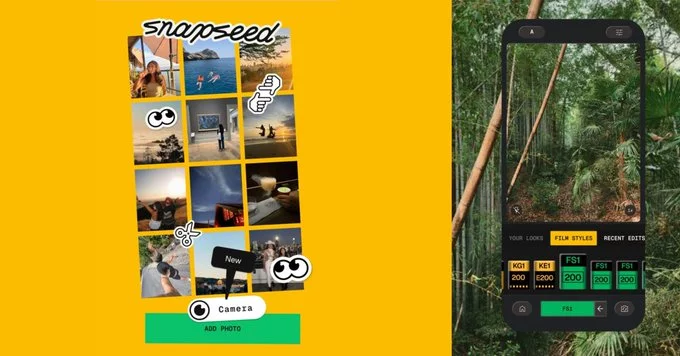
The popular Snapseed camera on Android just got a useful update that adds grid lines and a level tool. This new feature helps you take straighter, better-composed photos right from the app. Whether you're a beginner or a pro, these tools make framing your shots easier than ever.
What Are Grid Lines and Why Do They Matter?
Grid lines overlay a set of horizontal and vertical lines on your camera screen. They help you follow the rule of thirds, a classic photography technique. By placing your subject along these lines or at their intersections, you create more balanced and interesting images.
- Better composition: Align horizons, buildings, or people perfectly.
- Easy to use: No extra settings—just turn them on in the camera view.
- Ideal for all photos: Landscapes, portraits, and street photography benefit from grid lines.
The New Level Tool in Snapseed
The level tool is a simple yet powerful addition. It shows a bubble or indicator to tell you if your camera is tilted. This is especially handy for Android photography when you want straight horizons or symmetrical shots. No more crooked photos that need editing later.
How to Enable Grid Lines and Level in Snapseed
Using these tools is straightforward:
- Open the Snapseed app on your Android device.
- Tap the camera icon to enter photo mode.
- Look for the settings or overlay option (usually a gear or three dots icon).
- Toggle on grid lines and the level indicator.
- Start shooting with confidence!
These features are available in the latest version of the app. Make sure your app is updated from the Google Play Store.
Tips for Getting the Most Out of Grid Lines
Here are a few practical tips to improve your mobile photography with Snapseed:
- Use the rule of thirds: Place your main subject off-center for a dynamic look.
- Check the level first: Before snapping, ensure your camera is straight.
- Experiment with different grids: Some apps offer square or golden ratio grids—Snapseed's default works great for most scenes.
Why This Update Matters for Android Users
Snapseed is already a top choice for photo editing on Android. Adding these camera tools makes it a more complete photography app. You can now compose and capture images without switching to another camera app. This update saves time and helps you get the shot right the first time.
Whether you're taking quick snaps or planning a creative project, the grid lines and level tool in Snapseed are valuable additions. Try them today and see the difference in your photos.












Comment