Alerts

-
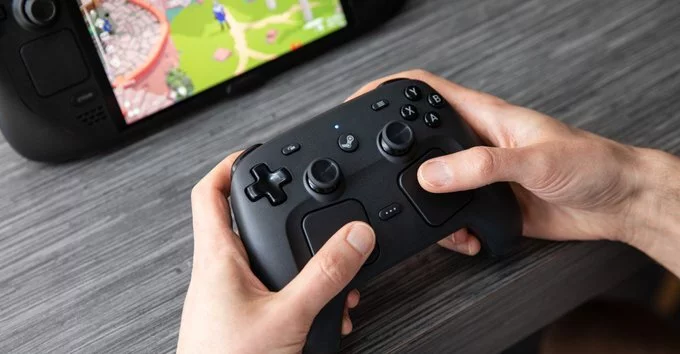
You may have heard that Valve’s new Steam Controller can ring like a telephone or perform the Wilhelm scream. But did you know it can sing songs, too? Thanks to the controller’s haptic motors, enthusiasts have already found a way to make it play recognizable tunes—from the Super Mario Bros. 2 ground theme to the iconic Portal track “Still Alive,” and even the heavy riffs of Doom.
The secret lies in the trackpads. The haptic motors, typically used for feedback as your thumb glides over the pads, can vibrate at specific frequencies—essentially acting like a small speaker. This allows the controller to produce audio without any built-in speaker hardware.
Valve’s second-generation Steam Controller uses advanced haptic motors that provide nuanced vibrations. These motors can simulate button presses even though the trackpads don’t physically click. By controlling the frequency and intensity of these vibrations, creative tinkerers have unlocked a hidden audio capability.
Developer CrazyCritic89 created an open-source tool called Steam Haptics Singer, available on GitHub for Windows and Linux. This program converts MIDI files—simple digital music files containing note instructions—into haptic vibrations that your Steam Controller or Steam Deck can play.
Getting your controller to play music requires a bit of tinkering, but the process is straightforward for those comfortable with basic terminal commands.
Download the appropriate version of Steam Haptics Singer for your operating system. On a Steam Deck, you’ll need to enter desktop mode. Extract the files and open a terminal in the directory. Follow the instructions provided on the GitHub page to connect your controller and load a MIDI file.
Once the software is running, the haptic motors will begin vibrating in patterns corresponding to the MIDI notes. The result is a recognizable melody emanating from your controller—no external speakers required.
Currently, Valve does not offer a native way to customize the Steam Controller’s sounds through Steam. In a recent interview, Valve’s Pierre-Loup Griffais stated that while customization and configurability are possible in the future, the team is not focused on it right now. He suggested that if demand grows, Valve might release an SDK or a dedicated tool for everyone to use.
Valve has a history of adopting community innovations. After Steam Deck users sideloaded custom boot videos, Valve made it an official feature—even adding a section in the Steam Store for boot videos. A similar path could be taken for haptic audio customization if enough users show interest.
For now, Steam Haptics Singer fills the gap. It empowers users to experiment with their hardware, turning a standard controller into a musical instrument. Whether you want to hear the Doom soundtrack or a classic Nintendo tune, the tool makes it possible.
While haptic audio is inherently limited compared to a traditional speaker, you can optimize your experience with a few simple adjustments.

2.8K articles

1.6K articles

34 articles

28 articles












Comment