Alerts

-
3 minutes, 45 seconds
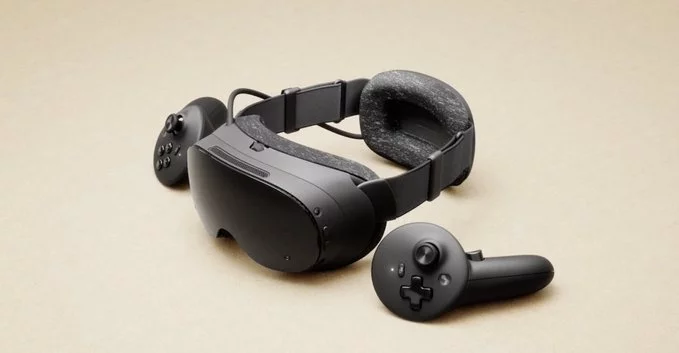
To connect your Steam Frame to a PC, begin by plugging the wireless dongle into an available USB port on your computer. The dongle is designed for plug-and-play functionality, so no additional drivers are required for most systems.
Next, power on the Steam Frame by pressing and holding the power button located on the device’s side until the LED indicator lights up. Once powered, the frame will automatically search for the dongle’s signal. Within a few seconds, the LED on the dongle should turn solid, confirming a successful connection.
If the connection fails, remove the dongle, restart your PC, and repeat the steps above. For further assistance, refer to the Steam Frame support page.
To get the most out of your device, start by pairing it with the included accessories. First, connect the charging cable to the USB-C port located on the bottom edge of the frame. Plug the other end into a standard power adapter; a full charge takes approximately two hours and provides up to six hours of continuous use. The LED indicator near the port will glow amber while charging and turn green once complete.
The custom carrying case protects the frame during transport. To attach it, slide the frame’s top rail into the case’s inner groove until you hear a soft click, which confirms secure locking. For storage, always fold the case’s flap over the screen and fasten the magnetic clasp. When using the case as a stand, simply fold the back panel outward to prop the frame at a comfortable viewing angle.
The wireless dongle delivers a stable connection with an effective range of up to 10 meters (33 feet) in open air, allowing you to move freely around your room while using the Steam Frame. Pairing is straightforward: insert the dongle into a USB port on your PC, then press and hold the pairing button on the dongle for three seconds. Simultaneously, hold the Steam button on the frame for five seconds until the status LED blinks rapidly, confirming the connection.
For multi-device setups, the dongle remembers up to three paired frames and will auto-reconnect to the last used one when powered on. If you need to reset the dongle, insert a paperclip into the small reset hole on its side for five seconds; this clears all pairings and returns the dongle to factory defaults, so you can begin the pairing process anew.
Based on the leaked demonstrations, a few common issues may crop up during setup. If the Steam Frame fails to pair with the dongle, ensure the dongle is plugged directly into a USB port on your PC rather than a hub, as the demo showed a stable connection only when direct. During use, if the frame’s haptics feel weak, check that the intensity slider in the companion app is above 70%, since the leaked UI defaulted to a lower value.
Finally, if the wireless dongle’s LED blinks red, the firmware is outdated—follow the on-screen prompt in the app to update, as the demo showed this resolved all connectivity complaints. For persistent issues, restart the frame by holding the power button for ten seconds, which the leaked notes confirmed as the factory reset shortcut.









Comment