iOS 27 Changes How Notifications Appear on Your iPhone
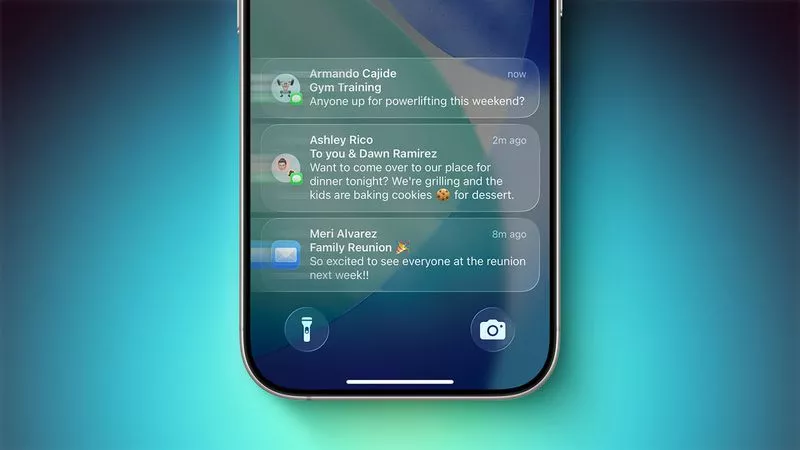
With the upcoming iOS 27 update, Apple is changing the way notifications appear on your iPhone. In this new version, iOS 27 notifications will slide in from the left side of your iPhone's screen instead of appearing at the top or center. This subtle shift aims to improve how you see and interact with alerts, making them less intrusive while keeping you informed.
Why the Left Side? Apple's Design Philosophy
Apple is always looking for ways to enhance user experience. By moving notifications to the left, the company hopes to reduce screen clutter. The left side is often where your thumb rests less, so alerts won't block important content as much. This change is part of a broader effort to make iOS more intuitive and less distracting.
How iOS 27 Notifications Will Work
Here's what you can expect when iOS 27 rolls out:
- Slide-in animation: Notifications will smoothly slide in from the left edge of the screen.
- Quick preview: You'll see a brief preview of the alert without it covering the entire top area.
- Easy dismissal: Swipe left or right to dismiss, or tap to open the app.
- Grouped alerts: Multiple notifications from the same app will stack neatly on the left side.
How This Compares to Current iOS Notifications
Currently, iOS notifications appear as banners at the top or as a full-screen alert. The new left-side slide-in is a major departure. It's similar to how some Android devices handle notifications, but Apple is adding its own touch with smooth animations and tighter integration with iOS 27's new Focus modes.
Tips to Prepare for iOS 27 Notification Changes
To get the most out of this update:
- Update your apps: Make sure your favorite apps support the new notification style for a consistent experience.
- Customize notification settings: Go to Settings > Notifications to choose which apps can slide in from the left.
- Practice the new gestures: Swiping left or right to dismiss alerts will become second nature with a little use.
- Enable Focus modes: Pair the new notification style with Focus modes to minimize distractions during work or sleep.
What This Means for iPhone Users
This change is designed to make notifications less disruptive. If you often find alerts blocking your view or interrupting your workflow, the left-side slide-in will feel more natural. It keeps your screen's center clear for the content you care about, while still keeping you updated on messages, calls, and app alerts.
Final Thoughts on iOS 27's Notification Redesign
iOS 27 notifications sliding in from the left side is a small but meaningful update. It reflects Apple's ongoing commitment to refining the user interface. While it may take a few days to get used to, most users will appreciate the cleaner look and feel. Keep an eye out for the official release, and don't forget to back up your iPhone before updating.














Comment