


Precision Finding Apple Watch Now Works With AirTag 2 Only
-
5 minutes, 15 seconds
Precision Finding Apple Watch Only Supports AirTag 2
Apple Watch users trying to locate items with Precision Finding now have a clearer picture: the feature works with the AirTag 2, but the original AirTag is left out. This has been confirmed by Apple’s latest support document and our own hands-on testing. If you own an Apple Watch Series 9, Apple Watch Ultra 2, or later, you can now use this feature to track AirTag 2 devices—but the first-generation AirTag from 2021 won’t respond.
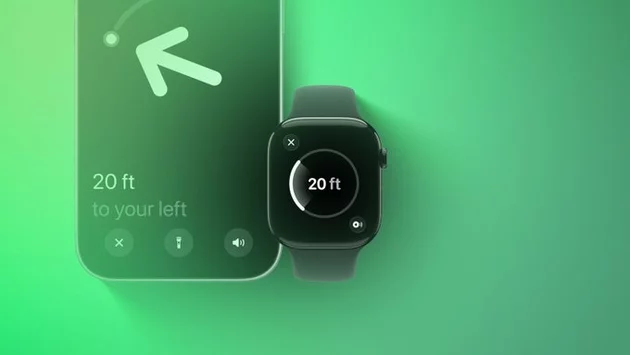
Precision Finding helps users find items with remarkable accuracy, showing a directional arrow and the distance to the item directly on a compatible Apple Watch. While iPhones have supported AirTag Precision Finding for years, the feature’s expansion to Apple Watch marks a new convenience—but with a clear limitation.
Why the Original AirTag Isn’t Supported
Apple has not officially explained why the original AirTag is incompatible with Precision Finding on Apple Watch. The most likely reason is hardware differences: the AirTag 2 uses Apple’s second-generation Ultra Wideband (UWB) chip, whereas the original relies on the first-generation chip. This updated chip provides faster, more precise location tracking, enabling the enhanced functionality on newer Apple Watches.
For users with the original AirTag, Precision Finding still works on iPhones from the iPhone 11 series and later. But Apple Watch owners will need to upgrade their AirTags to experience this next-level convenience.
How Precision Finding Works on Apple Watch
Precision Finding on Apple Watch is designed for simplicity. Once set up, the watch guides you step by step to your AirTag using a combination of directional cues and distance feedback. As you approach your item, the watch screen changes color, signaling that you are close. The new feature is particularly useful for busy environments or when an item is misplaced in a crowded space.
With AirTag 2, Precision Finding works at distances up to 1.5 times farther than the original AirTag. To fully benefit from this extended range, your device must meet the following requirements:
-
iPhone 15 or newer, or
-
Apple Watch Series 9 or newer, or
-
Apple Watch Ultra 2 or newer.
The feature requires watchOS 26.2.1 or later to function correctly.
Setting Up Precision Finding on Apple Watch
Apple makes setup straightforward. Follow these steps to enable Precision Finding for your AirTag 2:
-
Open Control Center on your Apple Watch.
-
Scroll to the bottom and tap Edit.
-
Tap the Add button.
-
Scroll down to Find Items and select it.
-
Tap Find AirTag, then Choose and select your item.
-
Tap Done twice to confirm.
Once setup is complete, your Apple Watch is ready to guide you to your AirTag 2 with visual and directional cues.
Using Precision Finding to Locate Items
Using the feature is just as simple as setup:
-
Open Control Center on your Apple Watch.
-
Scroll down and tap Find AirTag.
-
Follow the on-screen instructions, moving around until your watch connects with the AirTag 2.
-
Watch the distance and direction indicators. The screen turns green when you are close to the item.
For those still using an original AirTag, iPhone Precision Finding remains the best option.
What This Means for Apple Watch Users
Precision Finding on Apple Watch now extends its utility to AirTag 2 owners, making it easier than ever to locate lost items without relying on an iPhone. However, the original AirTag’s incompatibility highlights a divide between first- and second-generation devices. Users considering a Precision Finding upgrade will need to weigh the convenience of Apple Watch tracking against the cost of replacing older AirTags.
With faster, longer-range tracking, the AirTag 2 and Apple Watch Series 9 or Ultra 2 pairing sets a new standard for lost-item recovery. This feature may not be universal for all Apple users, but for those with compatible devices, it’s a noticeable upgrade in everyday convenience.



Contact Information





Suggested Writers
-

2.5K articles
-

1.3K articles
-

34 articles
-

28 articles



Comment