
Alerts
-
2 minutes, 20 seconds
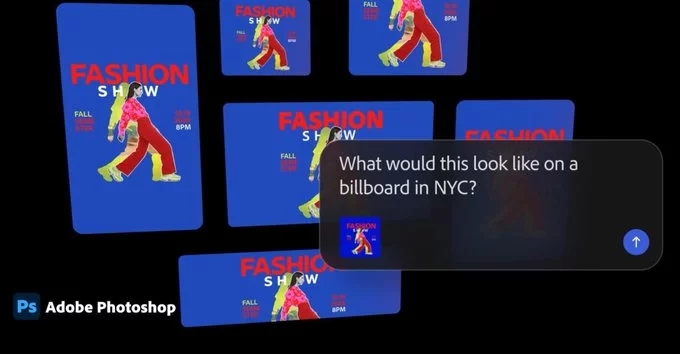
Adobe has officially added AI assistants to Photoshop and Premiere Pro. These new tools help you edit images and videos faster and easier than ever before. In this article, we explain how these AI assistants work, what they can do, and how you can use them to improve your creative projects.
The AI assistants in Photoshop and Premiere Pro are smart tools that use artificial intelligence to automate repetitive tasks. They understand your commands and suggest edits, making complex workflows simple. For example, in Photoshop, you can ask the AI to remove a background or adjust lighting. In Premiere Pro, you can ask it to trim clips or add transitions.
Using these AI assistants is straightforward. In Photoshop, look for the 'AI Assistant' panel under the 'Help' menu. You can type or speak your request, like 'remove the person in the background.' The AI will process your command and show you a preview. In Premiere Pro, the AI assistant appears as a floating icon. Click it, and you can ask for actions like 'add a fade-in effect to the first clip.'
These AI assistants save you hours of manual work. For photographers, it means faster edits and more time for creative decisions. For video editors, it simplifies cutting and organizing footage. Even beginners can now produce professional-looking content without years of experience. Adobe is making advanced editing accessible to everyone.
Photoshop and Premiere now have AI assistants that transform how you edit. Whether you are a seasoned pro or just starting, these tools can boost your productivity and creativity. Try them today and see how AI can simplify your workflow.







Comment