
-
5 minutes, 33 seconds
Apple’s Camera Control button is one of those subtle features most iPhone users overlook—but it can transform how you take photos and videos. Many people ask, “What can the Camera Control button actually do?” or “How do I unlock its full potential?” While it may not act like a traditional camera shutter, the Camera Control is packed with hidden tricks for zooming, flipping cameras, and even magnifying objects before you snap a shot.
If you’ve never explored it, you’re missing out on one of the iPhone’s most convenient shortcuts.
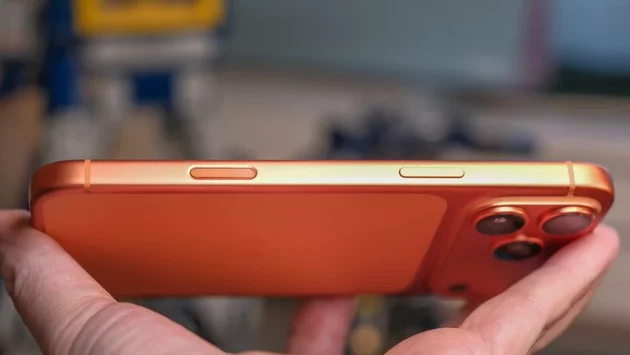
The Camera Control first appeared on the iPhone 16 and 16 Pro models and continues on the latest iPhone 17 lineup, including the iPhone Air. It doesn’t resemble a physical button—instead, it’s a touch-enabled interface that sits subtly on your camera screen.
By default, many users accidentally tap it without realizing its potential. Unlocking its functions requires exploring the tiny pop-up window that appears when you activate the button. Once you know where to look, you’ll see options for zooming, camera switching, and even quick access to apps like Magnifier.
One of the most useful Camera Control features is its zoom functionality. Instead of fiddling with pinch-to-zoom gestures, the button offers precise digital and optical zoom adjustments.
You can switch between wide, ultra-wide, and telephoto lenses instantly. The pop-up interface displays a slider for fine-tuned zoom levels, letting you focus on details without moving your hand too much. This is particularly handy for capturing live events, distant scenery, or spontaneous street photography.
Flipping between the front and rear cameras is another hidden gem. Normally, you’d tap a tiny icon on the main screen, but the Camera Control shortcut allows you to do it in one swipe.
This feature is perfect for vloggers, video calls, or quick selfies. You don’t have to pause your workflow or risk missing the shot—the Camera Control makes transitions fluid, saving precious seconds during every session.
The Camera Control also integrates with the iPhone’s Magnifier app, turning your camera into a high-powered loupe.
Whether you’re trying to read fine print, inspect jewelry, or examine textures, this feature brings objects into crystal-clear focus. Activating it is as simple as tapping the Camera Control pop-up, giving you a functional magnifying glass at your fingertips.
The real power of the Camera Control lies in customization. Apple lets you assign different functions depending on your photography style.
You can choose which apps appear in the pop-up, adjust zoom behavior, or even set shortcuts for creative modes like portrait, cinematic, or macro photography. For tech enthusiasts and casual users alike, this flexibility transforms the Camera Control into a productivity booster rather than just a convenience.
Despite its potential, many iPhone owners never explore the Camera Control. Some assume it’s just a duplicate shutter button, while others simply don’t notice the pop-up menu.
Learning to navigate this small feature can dramatically improve your photo-taking efficiency. Once you get comfortable with its hidden capabilities, it quickly becomes an essential part of your iPhone workflow.
Apple’s Camera Control button may be subtle, but it’s far from trivial. From seamless camera switching and precise zooming to instant magnification, it offers tools that can make every photo shoot smoother and more creative.
Exploring and customizing its features ensures you’re not just snapping pictures—you’re taking full control of your iPhone photography experience. Next time you open your camera, don’t just tap the screen—tap into the Camera Control and unlock its hidden potential.

2.5K articles

1.3K articles

34 articles

28 articles














Comment