
-
5 minutes, 20 seconds
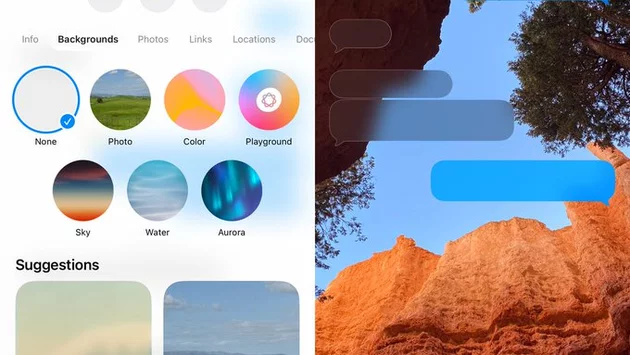
Your iPhone may feel slower, less responsive, or more cluttered than it did on day one, but a replacement isn’t always the answer. iOS settings hide powerful tools that can improve performance, strengthen privacy, and extend battery life in minutes. Many users search for ways to speed up an iPhone, protect personal data, or make everyday tasks smoother without downloading new apps. Apple quietly builds these solutions directly into iOS. Adjusting a few key options can dramatically change how your device feels. The best part is that these tweaks work on recent models, including the iPhone 15. Small changes often deliver the biggest upgrades.
Several iOS settings directly affect how fast your iPhone feels during daily use. Background App Refresh allows apps to update constantly, even when you are not using them. Turning it off for nonessential apps can free up memory and reduce lag. Motion effects and animations look smooth but can slow older devices over time. Reducing Motion trims visual flair while improving responsiveness. Storage management tools also reveal apps quietly consuming resources. Clearing system clutter gives iOS more room to breathe. Performance gains are noticeable almost immediately after these adjustments.
Battery drain remains one of the most common iPhone complaints. iOS settings let you control which features quietly consume power throughout the day. Location Services often run in the background for apps that don’t need constant access. Switching location permissions to “While Using” can add hours of battery life. Optimized Battery Charging helps reduce long-term wear by slowing charging overnight. Display brightness and auto-lock timing also play a major role. Shorter screen-on times mean less energy loss. These tweaks work together to keep your phone running longer between charges.
Apple emphasizes privacy, but many protections remain buried in menus. iOS settings allow you to limit app tracking and control how data is shared. App Tracking Transparency lets you block advertisers from following your activity across apps. Microphone and camera access logs reveal which apps recently used sensitive hardware. Safari privacy controls reduce cross-site tracking and fingerprinting. Password monitoring alerts you to compromised credentials automatically. These features add layers of protection without affecting usability. Strong privacy settings create peace of mind during everyday browsing.
Beyond speed and security, iOS settings can simplify how you interact with your phone. Focus modes filter notifications based on time, location, or activity. Customizing them reduces distractions without fully silencing important alerts. Back Tap gestures let you trigger actions with a double or triple tap. Text size, haptic feedback, and accessibility shortcuts improve comfort during long sessions. Keyboard settings speed up typing with predictive improvements. Siri suggestions adapt to your habits over time. Together, these tools make your iPhone feel more personal.
Connectivity issues often stem from default network settings. iOS settings allow you to reset network configurations without erasing personal data. Wi-Fi Assist switches to cellular data when networks become unstable. Data usage controls prevent background downloads from eating bandwidth. Bluetooth permissions limit which apps can scan nearby devices. Mail fetch intervals affect both connectivity and battery consumption. Adjusting these options creates more stable performance. Better control leads to fewer surprise slowdowns.
New iPhones offer impressive hardware, but software optimization often delivers similar satisfaction. iOS settings let users reclaim performance without extra cost. Apple continuously adds features that reward informed users. Small adjustments compound into noticeable improvements over time. This approach aligns with Apple’s push toward sustainability and device longevity. Users gain more value from the phones they already own. Mastering iOS settings turns frustration into confidence. Your iPhone works smarter when you tell it how.

2.5K articles

1.4K articles

34 articles

28 articles














Comment