
Alerts
-
2 minutes, 12 seconds
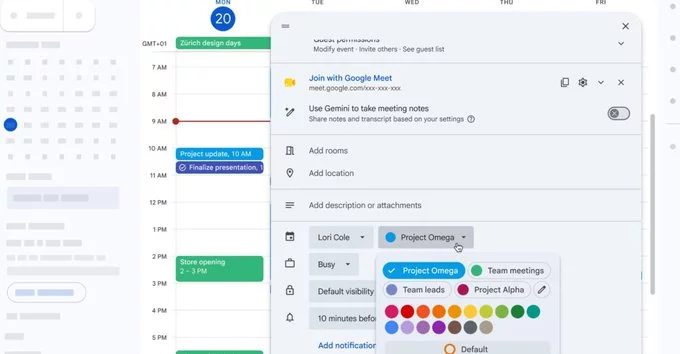
Google Calendar has finally added more color options for events, giving users a fresh way to organize their schedules. This long-awaited update lets you choose from a wider palette of colors, making it easier to visually separate work, personal, and social events at a glance. Whether you’re a busy professional or a student, this simple change can boost your productivity and reduce calendar clutter.
Previously, Google Calendar offered a limited set of 10 basic colors for events. Now, the update introduces a broader spectrum, including pastels, bolder shades, and more neutral tones. You can access these new colors directly when creating or editing an event.
More color options mean better visual sorting. You can now assign specific colors to different categories, like blue for work, green for health, and purple for hobbies. This helps your brain process information faster, reducing the time spent scanning your day.
The new color options are rolling out automatically to all Google Calendar users on web and mobile. If you don’t see them yet, try refreshing your browser or updating the Google Calendar app from the Play Store or App Store. No extra settings are needed—just start using the colors right away.
Google Calendar’s expanded color options are a small but powerful upgrade. They make scheduling more intuitive and visually appealing. Start experimenting with the new palette today to see how it transforms your daily planning.










Comment