
Why Even Microsoft Can’t Make Windows 11 Run Smoothly on 8GB of RAM
-
2 minutes, 31 seconds
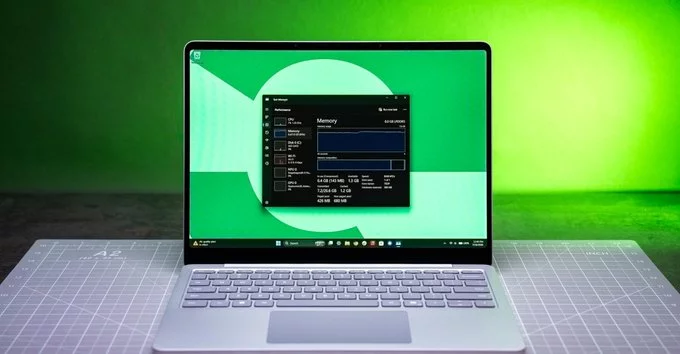
Even Microsoft couldn’t make Windows 11 work well on 8GB of RAM. Despite being the recommended minimum, 8GB of memory often feels sluggish, especially when running multiple apps or modern software. In this article, we explain why Windows 11 struggles on 8GB RAM, what you can do to improve performance, and whether upgrading to 16GB is worth it.
Why Windows 11 Lags on 8GB of RAM
Windows 11 is a feature-rich operating system, but it’s also resource-hungry. Even with Microsoft’s optimizations, 8GB of RAM is no longer enough for smooth multitasking. Here’s why:
- Background processes: Windows 11 runs many services like Windows Defender, updates, and telemetry, which consume memory.
- Browser tabs: Modern browsers like Chrome and Edge easily use 2-4GB of RAM with just a few tabs open.
- Apps and games: Applications like Microsoft Teams, Zoom, or casual games can push 8GB to its limit.
How Microsoft Tried to Fix It
Microsoft has introduced several features to reduce memory usage, such as:
1. Memory Compression
Windows 11 compresses unused data in RAM to free up space. While helpful, this can slow down your system when memory is full.
2. Improved Task Manager
The new Task Manager gives you better tools to see which apps use the most memory. You can close heavy apps manually.
3. Efficient Updates
Windows 11 downloads updates in the background more efficiently, but they still take up RAM.
Despite these efforts, 8GB RAM remains a bottleneck for many users.
Is 8GB RAM Enough for Windows 11 in 2025?
For light tasks like email, web browsing, or word processing, 8GB can work—but not smoothly. For anything more, like video calls, photo editing, or gaming, you’ll notice slowdowns.
Our tip: If you already have 8GB, try closing unnecessary startup programs and limiting browser tabs. Consider upgrading to 16GB for a noticeable speed boost.
How to Improve Windows 11 Performance on 8GB RAM
If you’re stuck with 8GB, here are practical steps to make Windows 11 run better:
- Disable startup programs: Use Task Manager to turn off apps that launch automatically.
- Use lightweight browsers: Try Edge with efficiency mode or Firefox.
- Turn off visual effects: Go to Performance Options and select “Adjust for best performance.”
- Use ReadyBoost: Plug in a fast USB drive to act as extra memory (works only on some systems).
- Upgrade to SSD: An SSD makes swapping data faster when RAM runs out.
Should You Upgrade to 16GB RAM?
Yes, if you can. 16GB RAM is the new sweet spot for Windows 11. It allows smooth multitasking, faster app loading, and better gaming. For most users, 16GB is a worthwhile investment.
What About 32GB?
Only needed if you’re a power user—video editing, 3D rendering, or running virtual machines. For everyday use, 32GB is overkill.
Even Microsoft couldn’t make Windows 11 work well on 8GB of RAM. The operating system is simply too demanding for that amount of memory in 2025. If you want a frustration-free experience, upgrade to 16GB or follow our optimization tips above.



Contact Information




Suggested Writers
-

2.5K articles
-

1.3K articles
-

34 articles
-

28 articles



Comment