Alerts

-
5 minutes, 42 seconds
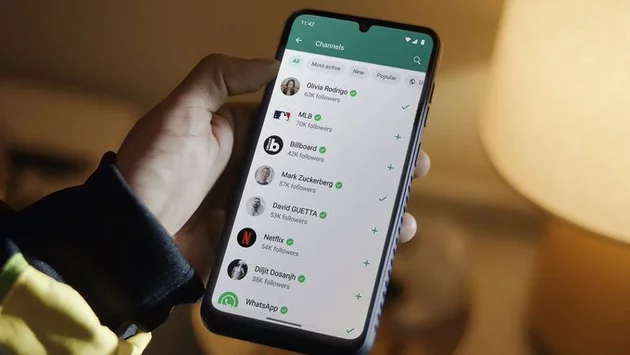
If your WhatsApp photos and videos look blurry after sending, you’re not alone. Many users don’t realize that WhatsApp compresses media by default, reducing resolution and detail. Thankfully, WhatsApp offers a simple way to send photos and videos in HD quality, giving your media a noticeable upgrade. Whether you’re sharing a vacation snapshot or a family video, HD mode ensures your files arrive sharper and more vibrant.
For photos, HD can boost resolution up to 4096 x 2692, compared to the standard 1600 x 1052. Videos also get a clear bump, moving from 480p to 720p. While this isn’t full 4K video quality, it’s a significant improvement for everyday sharing and viewing.
Sending HD photos on WhatsApp is quick once you know where to look. First, open the chat where you want to send your photo. If you’re taking a new photo, tap the camera icon and capture your shot. You’ll notice an ‘HD’ icon—tap it to switch from standard to HD quality.
If you’re sending a photo from your gallery instead, the steps differ slightly between iOS and Android. On iOS, tap the ‘+’ icon, select ‘Photos,’ then choose your image. On Android, tap the paperclip icon, choose ‘Gallery,’ and select your photo. Either way, make sure to hit the HD icon before tapping ‘Send.’
HD videos work similarly to photos but require a few extra taps. For new recordings, open the chat, tap the camera icon, and record your video. Before sending, switch to HD by tapping the HD icon.
For existing videos, the process mirrors photos: select the file from your gallery, tap the HD icon, and hit send. Keep in mind that sending HD videos may use more mobile data, so Wi-Fi is recommended for large files. This ensures faster delivery and avoids unexpected data charges.
If you frequently send HD photos and videos, WhatsApp lets you make HD the default quality. This removes the need to select HD every time you send a file.
To set this up, go to WhatsApp Settings > Storage and Data > Media Upload Quality, then select Best Quality. Now, all your photos and videos will automatically send in HD, whether you’re sharing a new capture or something from your gallery. This small tweak dramatically improves the clarity of your messages without extra effort.
Sharing in HD isn’t just about prettier pictures—it preserves detail, color accuracy, and overall quality. This is especially useful for group chats, work projects, or sharing special moments with friends and family. Low-resolution files can look pixelated on larger screens, but HD ensures your media stays sharp across devices.
Additionally, HD photos and videos make a big difference when saving or reposting media later. You’ll get more detail for cropping, editing, or printing, giving your images a professional touch even when shared casually.
While HD mode enhances media quality, it does increase file size. Here are a few tips to balance quality with efficiency:
Use Wi-Fi when sending large files to save mobile data.
Trim videos before sending to reduce file size without sacrificing HD quality.
Monitor storage usage, especially in large group chats, as HD files take up more space.
By following these tips, you can enjoy crisp, clear media on WhatsApp without slowing down your device or draining your data plan.
WhatsApp’s HD photos and videos feature is a game-changer for anyone who shares media regularly. With just a few taps, you can upgrade your media, impress friends, and preserve precious moments in higher quality. Whether you make HD the default or select it case by case, your photos and videos will finally look the way they were meant to—vivid, sharp, and professional.










Comment