Alerts

-
2 minutes, 33 seconds
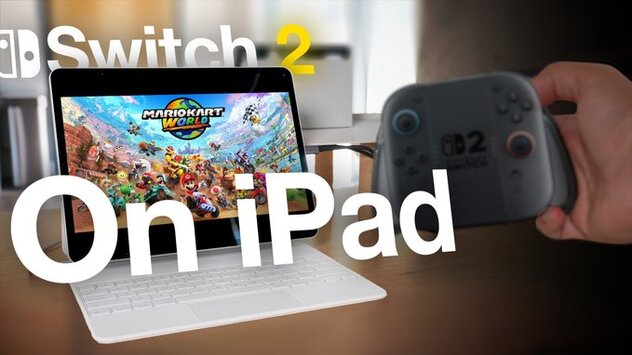
How to Use iPad as Nintendo Switch 2 Display Anywhere
Need a bigger screen for your Nintendo Switch 2 while traveling? You can use iPad as Nintendo Switch 2 display with just a USB-C iPad, a few accessories, and a free app. This setup is perfect for gaming on the go, letting you turn your tablet into a handy monitor for your console. Whether you're on vacation or away from your main TV, this solution is quick, affordable, and surprisingly effective.
What You Need to Use iPad as Nintendo Switch 2 Display
To get started, you'll need a USB-C iPad running the latest iPadOS version, a Nintendo Switch 2 (or the original Switch), and a video capture dongle. You can easily find a capture card for around $20 on Amazon. Also, make sure you have an HDMI cable and download a compatible video app—Orion is a great free option. For enhanced features like 4K upscaling, there's a $5 one-time upgrade.
Setting Up Your iPad as a Display for Switch 2
Once you have everything ready, connect the Switch 2 to its dock, then plug in the HDMI cable. Connect the other end of the cable to the video capture card, and then plug the capture card’s USB-C cable into your iPad. Open the Orion app, power everything on, and you'll see the Switch 2 screen appear on your iPad. This setup also works for other consoles like PlayStation and Xbox.
Performance and What to Expect When Gaming
The experience is smooth, with only a slight input delay. It’s good enough for most games—especially offline adventures or casual play. However, fast-paced online shooters may not perform as well due to the minor lag. Still, this method is one of the most portable and convenient ways to use iPad as Nintendo Switch 2 display without needing a TV.






Comment