
Alerts
-
3 minutes, 56 seconds
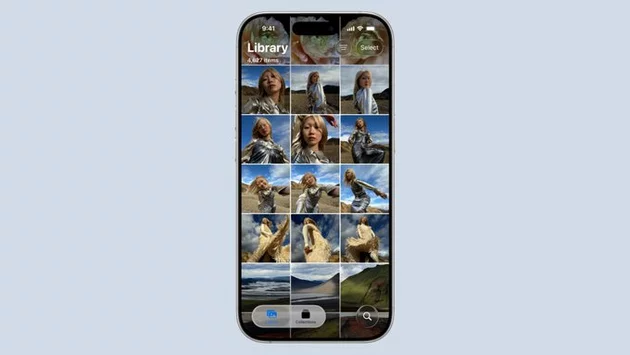
iPhone users often love Live Photos for the way they capture movement and sound around a moment, but did you know you can combine several Live Photos into a single video? This feature lets you create a seamless montage of memories, from family gatherings to spontaneous adventures. Here’s how to transform your collection of Live Photos into a cohesive, shareable video using the Photos app on iOS 26.
Live Photos aren’t just still images—they include a few seconds of video before and after you snap the picture. This makes every shot feel more alive, capturing emotions and motion that a regular photo can’t. While each Live Photo is beautiful on its own, combining them lets you tell a bigger story. A short video montage of your best Live Photos can preserve moments in a way that’s easy to watch and share with friends and family.
Creating a video from multiple Live Photos is surprisingly simple. Follow these steps to merge your favorite moments into one continuous clip:
Open the Photos App: Launch the Photos app on your iPhone or iPad.
Access Live Photos: Tap the Collections icon at the bottom of the screen. Scroll to Media Types and select Live Photos.
Select Your Live Photos: Tap Select in the top-right corner, then tap each Live Photo you want to include. A checkmark will appear on the selected items.
Save as Video: Tap the three-dot button in the top-right corner. From the pop-up menu, choose Save as Video. Your selected Live Photos will automatically merge into a single video saved to your library.
Choose a Theme: Whether it’s a birthday, vacation, or everyday moments, picking a theme helps create a cohesive video.
Order Matters: Arrange your Live Photos in the order you want them to appear. The sequence can influence the story your video tells.
Trim When Needed: After saving the video, you can trim its length directly in the Photos app for a polished final clip.
Once your video is ready, it’s easy to share with friends or post to social media. Turning multiple Live Photos into a single video not only saves space but also makes your memories more engaging and dynamic. It’s a small trick that can make your photo library feel like a personal highlight reel.
Combining Live Photos into one video is one of the simplest ways to get creative with your iPhone’s media library. With iOS 26, the process is fast, intuitive, and perfect for anyone looking to relive their favorite moments in motion.










Comment