
Alerts
-
3 minutes, 24 seconds
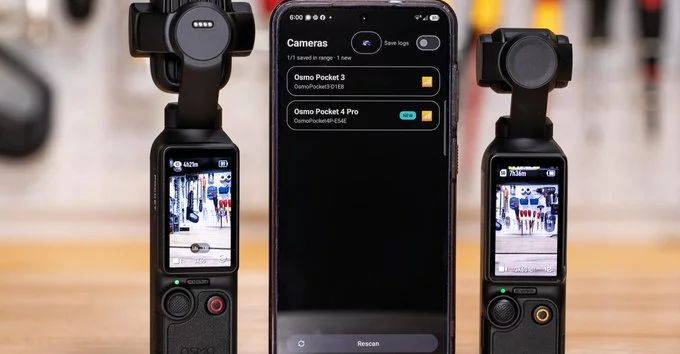
DJI Mimo is the official companion app for your drone or camera, but it isn’t always the best tool for transferring your media. One of the most common frustrations is the app’s insistence on compressing or processing footage during download, which can degrade quality or slow down your workflow. If you shoot in high bitrates or RAW formats, you may find that the app struggles to handle large files efficiently, leading to dropped connections or painfully slow transfers.
Beyond performance, there is the issue of user preference. Many creators prefer to manage their files directly through their device’s file system or a dedicated transfer tool, rather than being locked into a single ecosystem. The app also requires a stable connection and may prompt for updates or logins at inconvenient moments. For those who value speed, control, and direct access to their original files, skipping Mimo entirely is a deliberate choice—especially when a third-party tool can offer a cleaner, more transparent transfer experience.
If you’re looking to bypass the official DJI Mimo app entirely, Osmosis offers a practical alternative. This third-party tool is designed specifically to enable direct downloading of footage from your DJI Osmo camera to your computer—no mobile app required. Instead of relying on DJI’s software to transfer files, Osmosis connects to your camera’s storage and pulls the media straight to your local drive.
The main advantage here is simplicity: you avoid the app’s interface, login prompts, and any potential compression or processing steps. Osmosis focuses purely on file extraction, giving you raw access to your videos and photos. For creators who prefer a streamlined workflow—especially those working with large files or in the field—this can save significant time. It’s a straightforward solution that respects your existing editing setup, letting you get to work immediately after transfer.
Osmosis simplifies the transfer process by acting as a direct bridge between your camera and your device. Instead of relying on a proprietary app, you connect your camera using a standard USB cable or a Wi-Fi connection, depending on your model’s capabilities. Once the connection is established, Osmosis automatically detects the camera’s storage and presents your files in a clean, organized interface.
From there, you can select individual clips or entire folders to transfer. The app prioritizes speed and stability, using optimized protocols to move files without the compression or quality loss that sometimes occurs with other tools. You can also manage your transfers in the background, allowing you to continue shooting or browsing while files copy over. For USB connections, Osmosis leverages the direct data link for maximum throughput, while Wi-Fi mode offers a wireless alternative when a cable isn’t handy. The entire process is designed to be straightforward, so you spend less time troubleshooting and more time editing your footage.
Osmosis is designed for a specific—but growing—slice of the drone market. It currently supports the DJI Osmo Pocket 3 and the DJI Action 4, with no announced plans for other models. On the software side, the companion app runs on iOS 17 or later and Android 14 or later; older operating systems are not supported.
There are several hard requirements to note:
Finally, Osmosis does not transcode or compress video. It performs a raw, bit-for-bit copy, so file sizes remain identical to the originals on the SD card. This preserves quality but means you need sufficient free storage on your phone before starting a transfer.










Comment