
Alerts
-
4 minutes, 54 seconds
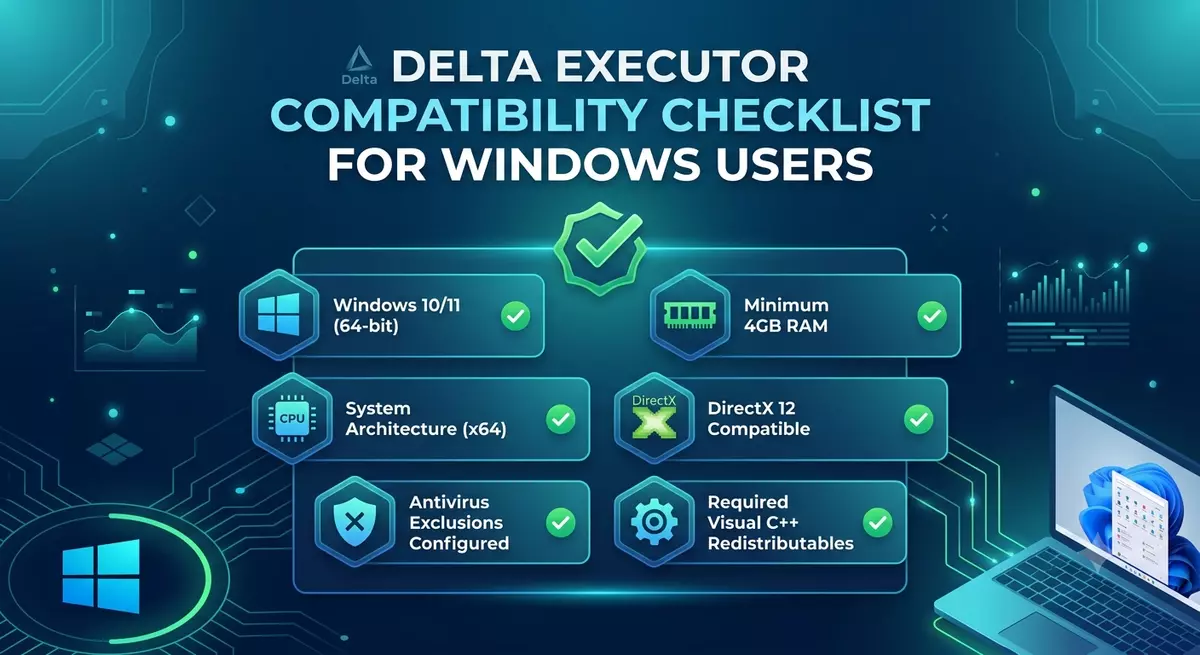
Before you start the Delta Executor download, Windows users should check that their PC, operating system, and resources meet the requirements of the version they want to install. Compatibility issues may cause installation errors, crashes, slow performance, or scripts not working as expected. A quick checklist can catch these problems before they become frustrating.
Delta Executor is a third-party tool that enables you to run compatible Lua scripts on supported Roblox games. This is not part of the official Roblox app.
Performance may vary based on the Windows version, computer hardware, available memory, storage, Roblox version, and scripts that are being used. These factors may change and should be checked for compatibility before use.
Start by checking which version of Windows your computer uses.
Go to Settings → System → About and look under Windows specifications. Compare your version with the requirements provided for the software you are considering.
An outdated operating system may cause compatibility or installation problems.
RAM affects how smoothly applications run. If your computer has very little free memory, running Roblox and other programs at the same time may cause slowdowns or crashes.
Close unnecessary applications before testing software. This can also make it easier to determine whether poor performance is caused by the tool or by limited system resources.
Low storage can prevent applications from installing correctly or creating temporary files.
Open Settings → System → Storage to see how much free space remains. Remove unnecessary files if your drive is nearly full.
Older processors may struggle with software that requires more system resources.
You can find basic processor information under Settings → System → About. Compare your hardware with the requirements of the particular software release.
Roblox changes regularly, and these updates can affect third-party tools and scripts.
If something stops working after a Roblox update, check whether the software version is compatible with the current Roblox environment before trying other fixes.
Windows may display a warning when you try to open an unfamiliar application. Do not automatically ignore the warning.
First, verify where the file came from and scan unfamiliar files with your security software. If the source is questionable, it is safer not to run the file.
Never disable important security protections simply to force an unknown application to open.
Windows users may encounter websites using terms such as Delta Direct Install file. The name alone does not confirm that a file is genuine, safe, or compatible with Windows.
Before opening any file, check:
The source of the download
The file type
Windows compatibility
Security warnings
Required permissions
Whether the software is still maintained
Avoid files that ask for unnecessary personal information or request unusual changes to your computer.
Some software functions may require an internet connection. A weak or unstable connection can cause loading or verification problems.
If a page or service does not load correctly, test your connection and try again later. Avoid assuming that every loading error is caused by your Windows computer.
Programs running in the background can use RAM, processor power, and network resources.
Before testing, close applications you do not need. This is especially useful if Roblox is running slowly or the computer becomes unresponsive.
Check your Windows version, hardware requirements, and security warnings. An incompatible or damaged file may prevent the application from opening.
Low storage, an incomplete package, or an unsupported Windows version can cause installation failures. Confirm the requirements before trying again.
Limited memory, outdated software, or incompatible scripts can cause crashes. Restart Windows and test the software with fewer background applications.
The script may be outdated or incompatible with the current Roblox environment. If only one script fails, investigate the script before changing your entire setup.
Check available RAM and CPU usage. Close unnecessary applications and make sure your computer has enough free storage.
Before using any third-party Roblox tool on Windows, check the following:
Windows version is supported
Enough RAM is available
Sufficient storage is free
Processor meets the requirements
Roblox is updated
Internet connection is stable
Security software shows no serious warnings
The software source is trustworthy
Scripts are compatible with the current environment
If something isn’t working, don’t make multiple changes at once. Begin with the foundations.
First, determine when the problem began. If it started after a Roblox update or a Windows update, it’s possibly a compatibility issue. Then check the version of the software and system requirements. Then try running the script on its own and look for error messages.
The step-wise approach assists in identifying the root cause.
Third-party software may also come with additional security risks. Do not give your Roblox password or any other sensitive account information to an unknown app or website.
Be wary of files asking for admin access, permissions that aren’t needed, or security changes. If a download source looks suspicious, don’t trust it just because it promises an easy fix.
Many common problems can be prevented with a Windows compatibility check. First, check your Windows version, RAM, storage, processor, Roblox version, and internet connection. If you’re experiencing crashes or installation errors, check these areas before trying out complex fixes. Also, be careful with files that are described as Delta Direct Install files, and never ignore Windows security warnings without knowing what they mean. Troubleshooting is easier if you take a careful, step-by-step approach and it’s safer for your computer and account.



Comment