Article
Have you ever been watching your favourite movie, reading an interesting article, or completing an important task on your iPhone when a warning suddenly covers your screen? Apple's Screen Distance feature is designed to encourage healthier viewing habits, but repeated alerts can sometimes become inconvenient. Fortunately, learning how to turn off p...
Read article
Have you ever been watching your favourite movie, reading an interesting article, or completing an important task on your iPhone when a warning suddenly covers your screen? Apple's Screen Distance feature is designed to encourage healthier viewing habits, but repeated alerts can sometimes become inconvenient. Fortunately, learning how to turn off phone too close can help you manage this setting and enjoy a more personalised iPhone experience. In this guide, we will explain what Screen Distance does, why users may want to disable it, and how to change the setting on a supported iPhone. What Is the Screen Distance Feature? Screen Distance is a new Apple function which was implemented along with the iOS 17 operating system, designed to ensure that a healthy distance is kept between the eyes and the device by the user. Using iPhones and iPads equipped with the TrueDepth camera system, the Screen Distance function is able to notice that the device is being held too closely (about 12 inches or 30 centimetres from face). In such a case, an alert appears, informing about the need to keep more distance. This function is especially beneficial for children as they often use their smartphones with no realization about how close their screens are located. However, it serves the purpose of healthy screen habits, not interruptions. Why Do People Want to Disable Screen Distance? While Screen Distance serves a useful function, not all users find it convenient to get these notifications. There are some who find them annoying whenever they are going through long articles, videos, websites, and even while using their phones before going to sleep. There are others who find it a nuisance when they use their devices in different postures or settings. Someone who lies on a bed and watches a movie would keep getting a notification if his phone is very close to his eyes. It is important to know how to disable phone too close for those who like to set the settings of their own choice. However, this does not mean that people should ignore comfortable screen viewing distance. How to Turn Off Phone Too Close on an iPhone In case the alerts interfere with your routine actions, there is an opportunity to turn off the Screen Distance on your iPhone in the Settings app. Learn the way of doing it in just four steps. Step 1: Launch the Settings Application Unlocks your iPhone and find the Settings app among your other applications. Click on the gear-shaped icon. Step 2: Tap Screen Time In the list of all the available options, find the Screen Time tab. This tab contains various settings related to device use. Step 3: Go to Screen Distance Open the Screen Time menu and find the Screen Distance there. Step 4: Turn Off the Screen Distance Switch off the switch next to the name of the feature. The iPhone will no longer show you the alerts. These instructions will help you turn off the feature "Phone too close" without downloading any other application and altering other settings. The wording of the menu options might be slightly different for various software versions. What If the Screen Distance Alert Keeps Appearing? Sometimes, users believe they have disabled a setting, only to encounter a similar alert later. If this happens, return to Settings and check Screen Time and Screen Distance to confirm the feature is switched off. You should also make sure you are not confusing Screen Distance alerts with other notifications. Screen Time reminders, app notifications, and other system messages may have different causes and require separate settings. If the problem continues, consider restarting your iPhone after checking the setting. You can also check whether your device has a software update available. A restart is a troubleshooting step, not a guaranteed solution for every notification issue. Knowing how to turn off phone too close can save time when you want to check the correct menu instead of repeatedly changing unrelated options. How to Enable Screen Distance Again You may decide later that the feature is useful, especially if children regularly use your iPhone or iPad. Fortunately, turning it back on is straightforward. Open Settings, select Screen Time, tap Screen Distance, and enable the toggle. Once activated, the feature can display reminders when the device remains too close for an extended period. If you are learning how to turn off phone too close, it is worth remembering that the same settings menu allows you to reverse your decision whenever your preferences change. Is It Safe to Turn Off Screen Distance? Disabling Screen Distance removes this particular reminder, but it does not automatically damage your eyesight. Equally, switching it on cannot guarantee that you will avoid vision problems. The feature is intended to encourage healthier viewing behaviour. Holding a screen close for extended periods may contribute to visual discomfort, and prolonged near work is associated with myopia risk, particularly in children. Screen Distance is only one tool for encouraging better habits. If you choose how to turn off phone too close as part of your preferred iPhone setup, remember to take regular breaks, blink normally, adjust your screen brightness comfortably, and avoid holding your device unnecessarily close to your face. Parents should consider their children's individual needs before disabling reminders designed to encourage a more comfortable viewing distance. Common Questions About Screen Distance Can I turn off Screen Distance permanently? You can leave the feature disabled until you decide to enable it again. However, software changes or adjustments to device settings may affect your experience. Does Screen Distance work on every iPhone? No. Availability depends on the device and its supported hardware and software. The feature requires a compatible device with the TrueDepth camera system. Will disabling Screen Distance improve my iPhone's performance? Turning off this feature is not intended to provide a noticeable performance improvement. Its primary effect is to stop Screen Distance reminders. Can I turn Screen Distance back on later? Yes. Open Settings, navigate to Screen Time, select Screen Distance, and enable the feature again. Conclusion Apple's Screen Distance feature encourages users to maintain a comfortable viewing distance, but frequent reminders may not suit everyone's preferences. Fortunately, the settings are easy to manage, allowing you to choose whether the feature remains enabled. By understanding how to turn off phone too close, you can adjust your iPhone settings in a few straightforward steps. Open Settings, navigate to Screen Time, select Screen Distance, and switch it off if you no longer want these alerts. For more practical iPhone tutorials, technology tips, and easy-to-follow digital guides, explore Tradeflock. Making informed choices about your device settings can help you enjoy a more convenient and comfortable everyday experience.


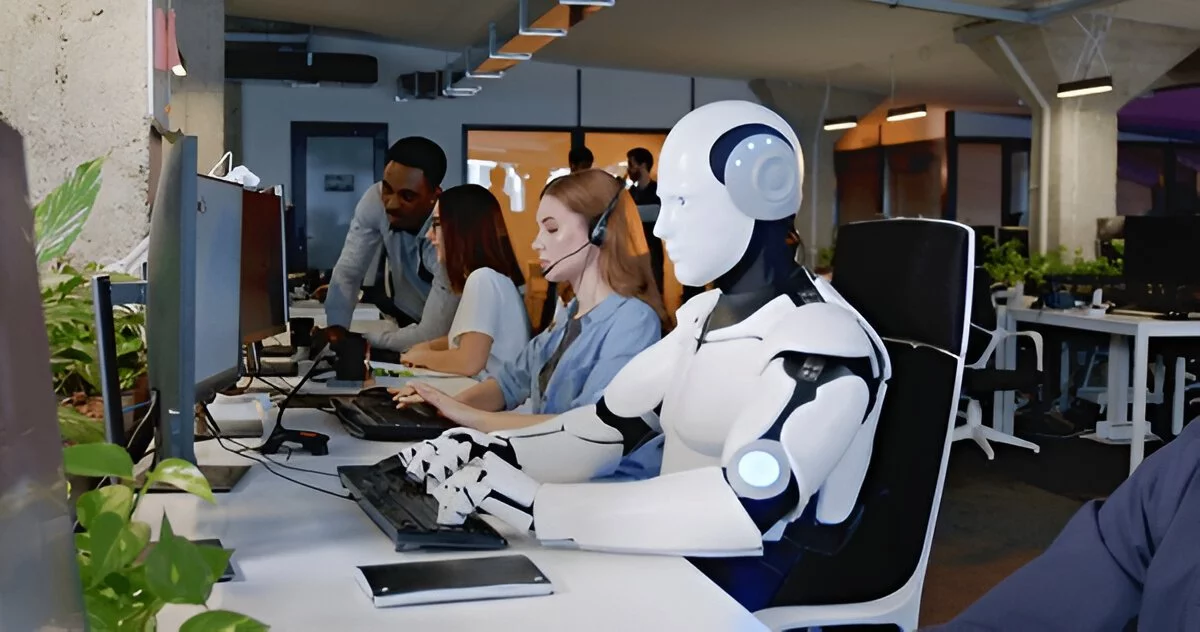 Bridging the Gap: How Accent Conversion Software Improves Speech Clarity in Global Call Centers
 Satya Nadella Says AI Models Need an Emergency Brake
 Apple Hires Huxe Team and Licenses Podcast Technology
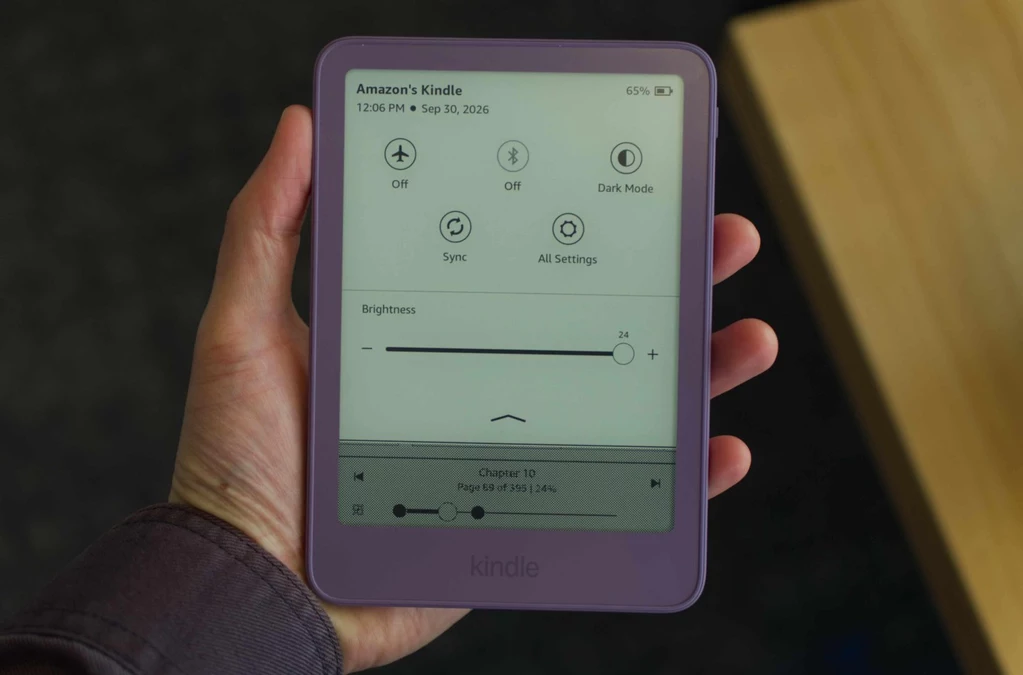 New Amazon Kindles Reportedly Show Light Leaks at Screen Edges
 RAM Shortage Revives DDR4 With New Intel and AMD CPUs
 AI Agents Promise Privacy: Can Dots and Muse Deliver?